QuickBooks Error 1402 (2026 Guide): How to Fix It Step-by-Step
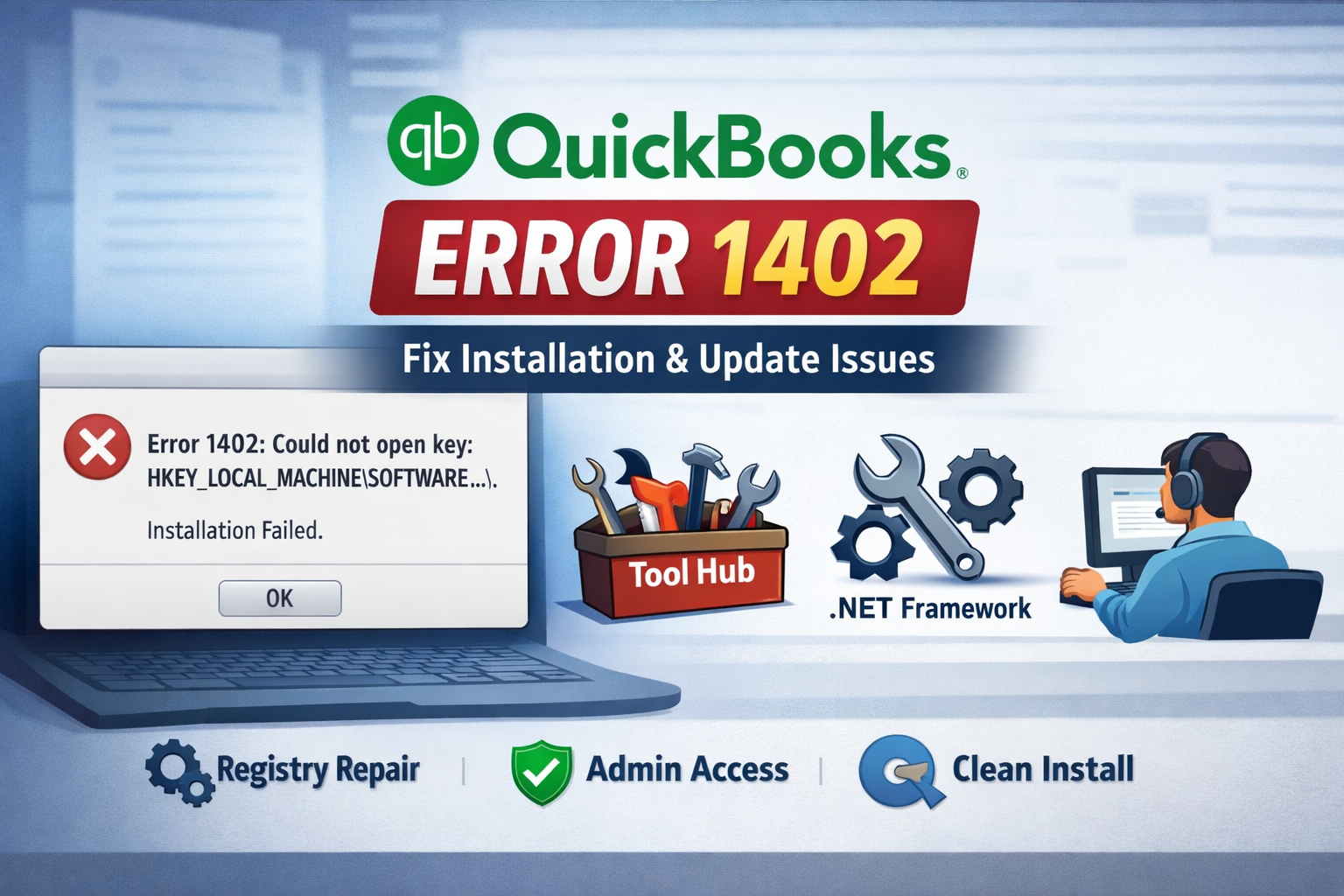
QuickBooks Error 1402 usually appears during installation, update, or upgrade of QuickBooks Desktop. The error message often says something like:
“Error 1402: Could not open key…”
This issue is mainly related to Windows registry permissions or damaged system components.
Common Causes of QuickBooks Error 1402
Incorrect or restricted Windows Registry permissions
Damaged or incomplete QuickBooks installation
Corrupt Microsoft .NET Framework
Interference from antivirus or security software
Installing QuickBooks without admin rights
Solution 1: Run QuickBooks Install Diagnostic Tool (Recommended)
This is the fastest and safest fix.
Steps:
Download QuickBooks Tool Hub
Open Tool Hub → Installation Issues
Click QuickBooks Install Diagnostic Tool
Let the tool run (may take 15–20 minutes)
Restart your computer
Reinstall or update QuickBooks
✅ Fixes .NET Framework, MSXML, and C++ issues automatically.
Solution 2: Install QuickBooks as Administrator
Right-click the QuickBooks installer
Select Run as Administrator
Follow on-screen instructions
Restart after installation
Solution 3: Repair Microsoft .NET Framework
Error 1402 often occurs due to a damaged .NET Framework.
Steps:
Open Control Panel
Go to Programs and Features
Click Turn Windows features on or off
Uncheck .NET Framework 4.8, click OK
Restart your system
Re-enable .NET Framework 4.8
Restart again
Solution 4: Temporarily Disable Antivirus & Firewall
Security software can block registry access.
Temporarily disable antivirus/firewall
Install or update QuickBooks
Re-enable security software after completion
⚠️ Do not browse the internet while antivirus is disabled.
Solution 5: Fix Windows Registry Permissions (Advanced)
⚠️ This is an advanced step. Backup your system first.
Press Windows + R, type regedit, press Enter
Locate the registry key shown in the error message
Right-click the key → Permissions
Give Full Control to:
Administrators
SYSTEM
Click Apply → OK
Restart and retry installation
Solution 6: Perform a Clean Install of QuickBooks
If nothing works:
Uninstall QuickBooks
Rename old QuickBooks folders
Reinstall using the latest version
Activate with license details
When Should You Contact Support?
Error persists after all steps
Registry edits feel risky
QuickBooks crashes repeatedly
Multi-user or server installation fails
Quick Summary
| Fix | Recommended |
|---|---|
| Install Diagnostic Tool | ⭐⭐⭐⭐⭐ |
| Run as Admin | ⭐⭐⭐⭐ |
| Repair .NET Framework | ⭐⭐⭐⭐ |
| Disable Antivirus | ⭐⭐⭐ |
| Registry Fix | ⭐⭐ (Advanced) |
| Clean Install | ⭐⭐⭐⭐⭐ |
Pro Tip for 2026
If you frequently face installation errors, consider QuickBooks Cloud Hosting. It eliminates local Windows and registry issues entirely and allows secure access from anywhere.