QBWC1039: Fix QuickBooks Web Connector Error
Encountering QuickBooks error QBWC1039 or “Unique OwnerID/FileID Required” disrupting your workflow?
Such errors commonly appear when connecting an application to QuickBooks via the Web Connector. They can also occur if a user attempts to add the same configuration file more than once.
Several other factors may contribute to this error, which we’ll explore in detail later in this section.
Overview of QuickBooks Error QBWC1039
Keep reading to understand this issue more thoroughly.
Before we dive into the steps to fix the error, it’s helpful to first understand what QuickBooks error QBWC1039 means. This error doesn’t have a single, specific message; instead, you may encounter a variety of messages, including:-
Message 1: “QBWC1039: If the QuickBooks company data file is not open…”
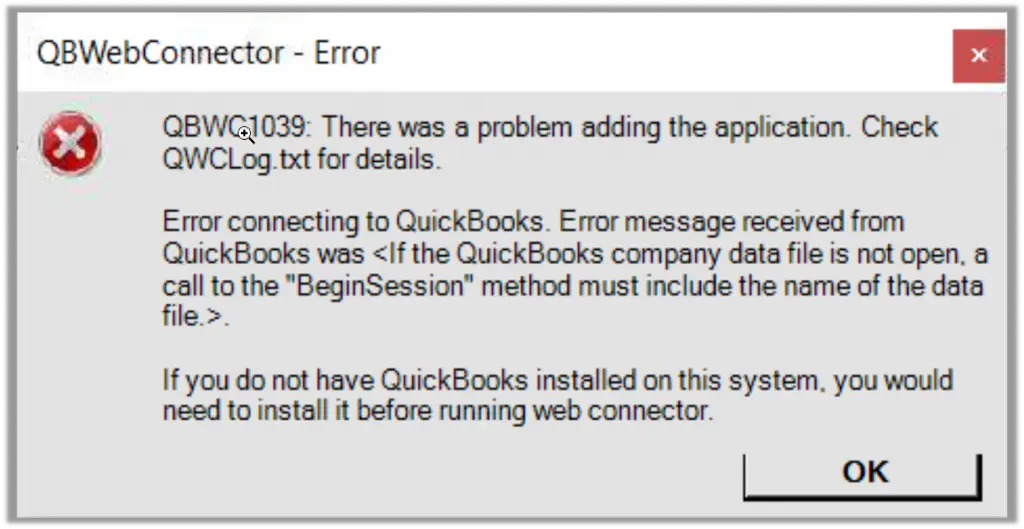
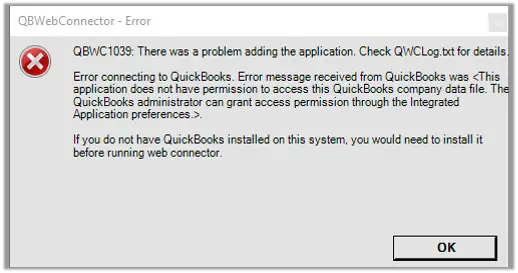
Message 2: “QBWC1039: This application does not have permission to access the QuickBooks company data file…”
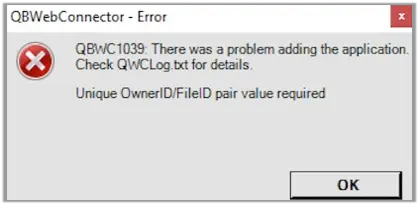
Message 3: “QBWC1039: Unique OwnerID/FileID pair value required”
Message 4: “QBWC1039: Unable to add FileID to company file for this Application”
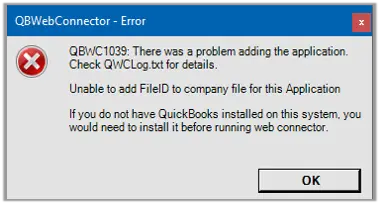
Message 5: “QBWC1039: There was a problem adding the application. Check QBWCLog.txt for details.”
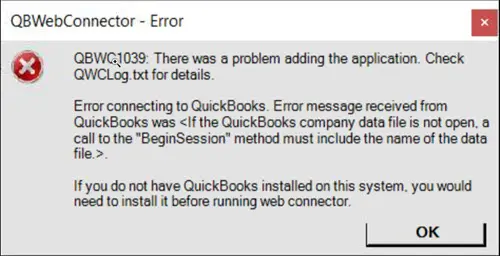
Any of these error messages may pop up, disrupting your workflow—especially when you’re trying to connect an application to QuickBooks using the Web Connector.
Possible Causes for QuickBooks Web Connector Error QBWC1039
Several factors can cause QuickBooks error QBWC1039, also known as “Unique OwnerID/FileID Required.”
Let’s break them down:
· The company file is stored on a remote computer.
· Previous attempts to integrate the application have been made.
· The company file name has been changed.
· Compatibility issues exist between the company file and the application.
· The QuickBooks admin has restricted third-party software integration.
· Important files have been deleted or removed by the third-party software.
For More : How to Fix QuickBooks Desktop Update Failed Error?
Symptoms of QuickBooks Web Connector Error QBWC1039
· QuickBooks Web Connector fails to complete the scheduled sync.
· Data is not updated between QuickBooks Desktop and the connected web application.
· The error message QBWC1039 appears repeatedly in the Web Connector log.
· QuickBooks or the third-party application may hang or become unresponsive during sync.
Consequences of QuickBooks Error QBWC1039
Delay in Data Updates Between QuickBooks and External Applications
When QBWC1039 occurs, the Web Connector fails to synchronize data between QuickBooks Desktop and connected applications.
Impact Details:
· Real-time data exchange stops, causing a lag in financial information.
· Businesses relying on up-to-date information for decision-making may base decisions on outdated data.
· Delays can affect reporting accuracy, cash flow monitoring, and operational planning.
Example:
A retail business using an online sales platform may not see the day’s sales reflected in QuickBooks until the error is fixed, delaying revenue tracking and inventory updates.
2. Failed Transactions or Unrecorded Entries
QBWC1039 can cause certain transactions to fail or not be recorded at all in QuickBooks Desktop.
Impact Details:
· Sales invoices, payments, vendor bills, or payroll entries might be missing.
· This can create reconciliation problems, making it difficult to match bank statements or track liabilities.
· Unrecorded entries can lead to financial discrepancies and potential compliance issues.
Example:
A payment received from a client via a third-party invoicing app may not appear in QuickBooks, leading to confusion in accounts receivable and delayed follow-ups.
3. Disruption in Automated Workflows
Many businesses set up automated workflows for accounting, payroll, invoicing, or inventory management. QBWC1039 can disrupt these processes.
Impact Details:
· Manual intervention becomes necessary to enter data, negating the efficiency of automation.
· Errors can increase as human entry is prone to mistakes.
· Critical deadlines, like payroll processing or vendor payments, may be missed.
· Overall business efficiency and productivity take a hit.
Example:
An accounting team relying on automated payroll integration might face delayed salary payments if the Web Connector fails to push payroll data to QuickBooks Desktop.
Summary:
QBWC1039 affects the accuracy, timeliness, and reliability of financial data, potentially causing operational delays, errors, and extra manual work for both accounting teams and business owners.
Before fixing the error, ensure
Before starting any troubleshooting, make sure QuickBooks Desktop is updated to the latest version.
Also, download and install the newest version of the Web Connector according to the respective QuickBooks version.
| QuickBooks desktop edition | QuickBooks Web Connector Edition |
| QuickBooks Desktop 2024 | Web Connector Edition 34.0.10010.76 |
| QuickBooks Desktop 2023 | Web Connector Edition 33.0.10015.91 |
| QuickBooks Desktop 2022 | Web Connector Edition 32.0.10018.93 |
| QuickBooks desktop 2021 | Web Connector Edition 31.0.10015.29 |
Note – In the table, you have to download and install the web connector for their respective QuickBooks desktop version.
7 Proven solutions to troubleshoot QuickBooks Web Connector Error QBWC1039
Now that you understand the causes of QuickBooks error QBWC1039, it’s time to apply the appropriate solutions. Let’s focus on resolving methods:
Method 1 – Updating QuickBooks to its recent versions to resolve the QuickBooks Web Connector Error QBWC1039
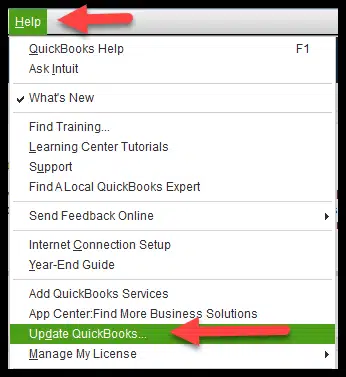
Using an old version of QuickBooks can lead to different errors. Therefore, it’s important to keep your software updated to the latest version, such as QuickBooks Desktop 2024. Follow these steps to update QuickBooks:
1. Download the latest QuickBooks update from the Intuit website.
2. Save the file in a location that’s easy to access.
3. Right-click the file and select “Run as Administrator” to start the installation.
4. Click “Finish” once the installation is complete and restart your computer.
After completing these steps, QuickBooks will be updated to the latest version and ready for use.
Method 2- Configuring the web connector to execute when QuickBooks is closed.
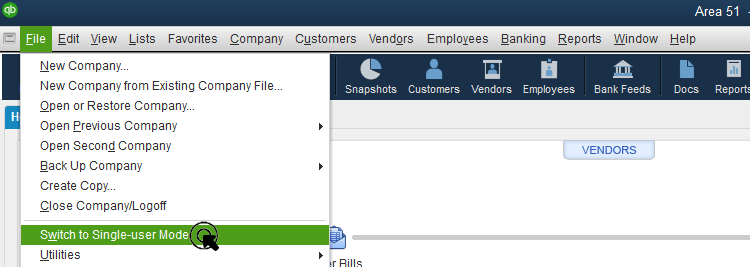
Proper configuration of your Web Connector is crucial. You can perform the following steps while QuickBooks is closed:
1. Sign in to QuickBooks as an admin user.
2. If QuickBooks is in multi-user mode, go to the File menu and switch to single-user mode.
3. From the Edit menu, select Preferences.
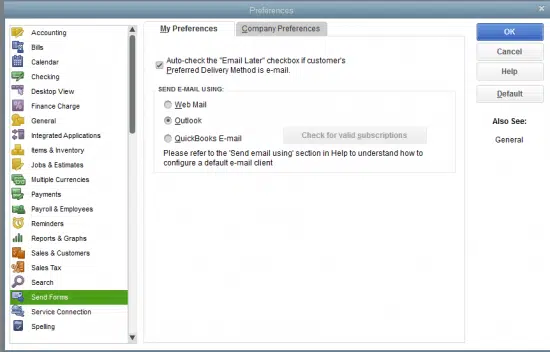
4. Choose Integrated Applications, then go to the Company Preferences tab.
5. Select the third-party app and click Properties.
6. Enable the option to allow this application to log in automatically.
7. In the authorization window, select Yes.
8. Choose the user to log in and click OK.
Recommended : How to fix QuickBooks Error 6000 77
Method 3 – Resolving permission issues while accessing the company file.
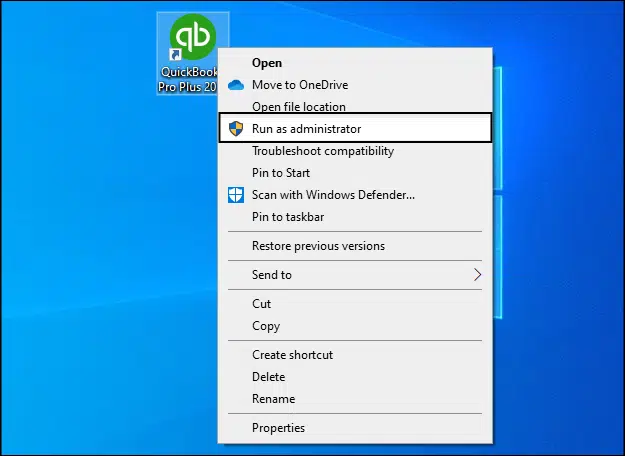
Insufficient permissions to access the company file can trigger the QuickBooks error “Unique OwnerID/FileID Required.” You can resolve this issue by following these steps:
· Sign in to QuickBooks as an admin.
· If QuickBooks is in multi-user mode, go to the File menu and switch to single-user mode.
· From the Edit menu, select Preferences.
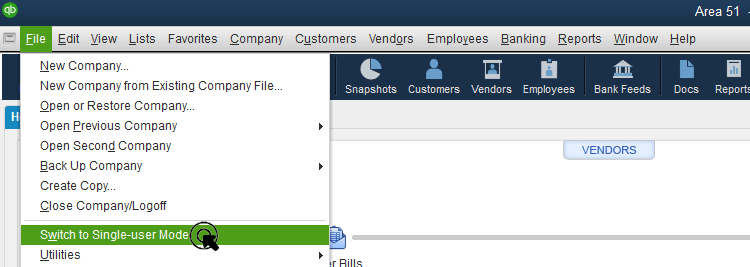
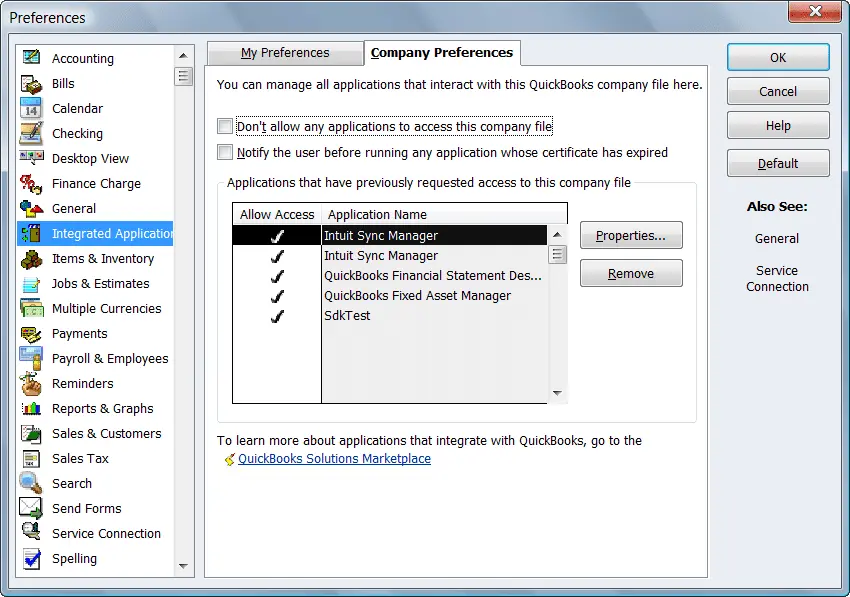
· Choose Integrated Applications, then go to the Company Preferences tab.
· Uncheck the box labeled “Don’t allow any application to access this company file.”
· In the SDK App Authorization window, select Yes.
· Ensure the third-party application is allowed access.
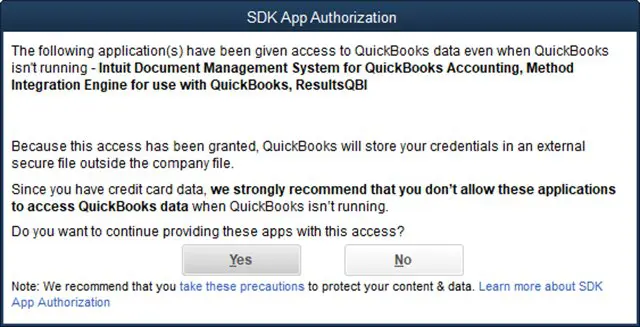
· Complete the process by clicking OK.
Method 4 – Genuine OwnerID/FileID pair value needed.
To complete this process, follow these steps:
· Open QuickBooks and download the CP3 tool.
· Launch the CP3 tool and click on the File menu.
· Locate the QWC file and enter the QBC file location.
· Open the file and select “Remove Stamp.”
· When a warning message appears, click Yes.
· Click Continue, then OK in the Access Confirmation window.
· Follow the on-screen prompts and click OK.
· After the confirmation message appears, click OK again.
· Finally, close the CP3 tool and add the third-party application.
Note: CP3 Tool is a QuickBooks Desktop utility designed to resolve Web Connector issues, such as QBWC1039. It helps remove “stamps” from QWC files, fix corrupted or duplicate entries, and reset third-party app connections, ensuring smooth integration between QuickBooks and web-based applications.
Method 5 – Changing the name of the company file.
If the issue persists, you can try renaming the company file by following these steps:
· Open QuickBooks and press F2 or Ctrl + 1 to open the information window.
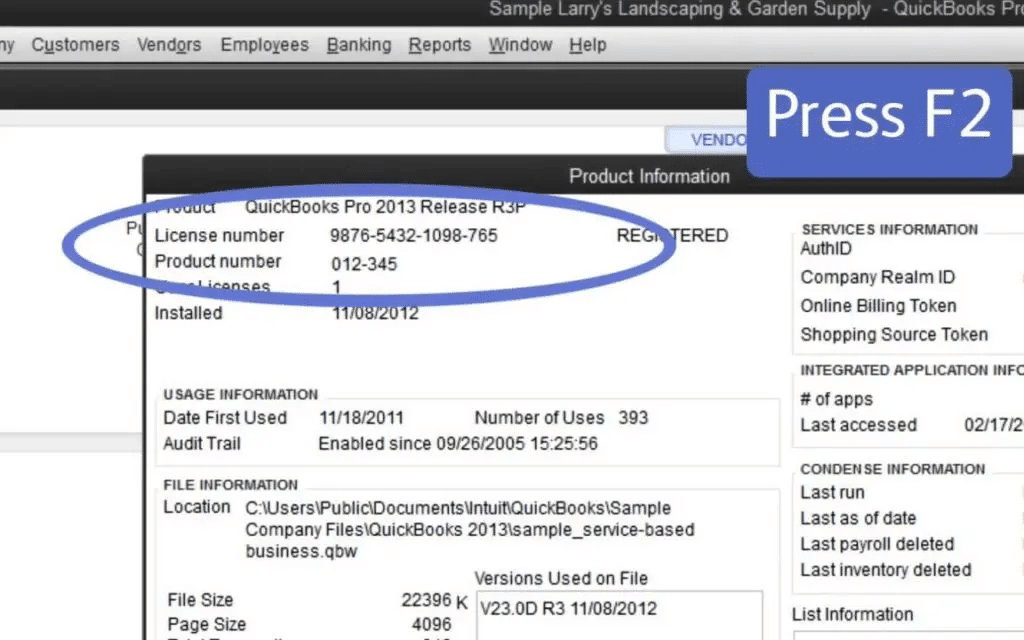
· Note the file location in the File Information field.
· Click the Start button.
· Open File Explorer (Windows 8) or Windows Explorer (other versions).
· Navigate to the company file, right-click it, and select Rename.
· Press Enter to confirm the new name.
· Click Yes to confirm the action.
· Open QuickBooks, use the new file name, and go to the File menu.
· Finally, open the company file and click Next to access the renamed file.
Method 6 – Restoring the backup file to its previous location
If your company file is saved on an external location, such as a USB drive, move it to your local hard drive before restoring it in QuickBooks. Follow these steps to restore a backup file:
· Open QuickBooks and click the File menu.
· Select Open or Restore Company, then choose Restore a Backup Copy.
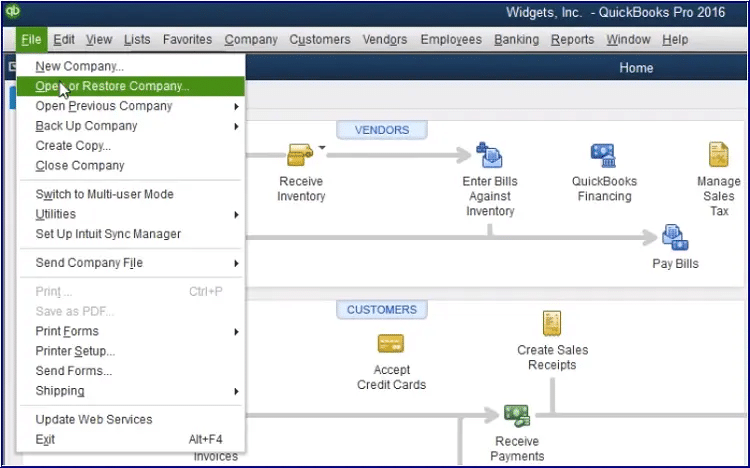
· Click Next and select the Local Backup option.
· Click Next again and browse to locate your backup company file.
· Choose a folder to save the restored file.
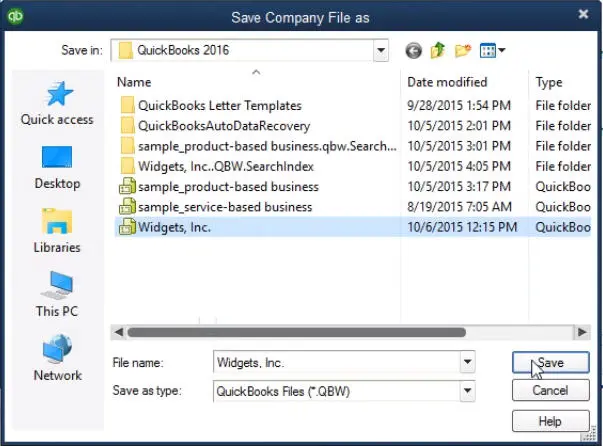
· Save the file with a unique name to avoid overwriting an existing company file.
· Finally, open and save the restored company file.
Method 7 – Creating a backup company file.
If the previous methods didn’t resolve QuickBooks error QBWC1039, try creating a backup of your company file by following these steps:
· Open QuickBooks and your company file.
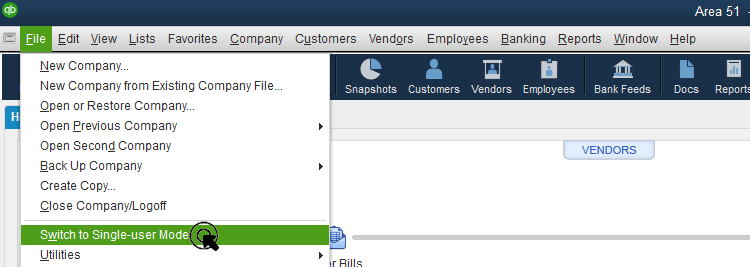
· Switch to single-user mode.
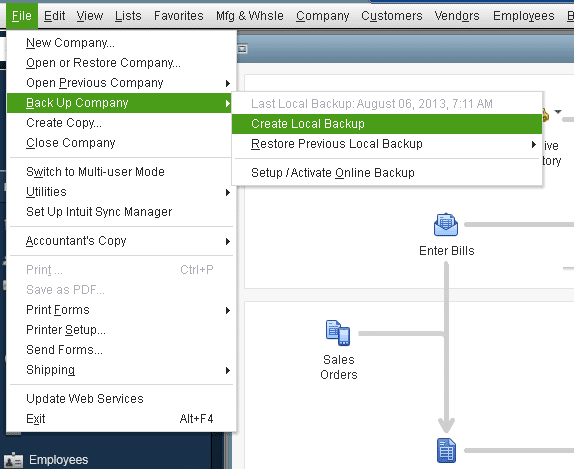
· Go to the File menu and select Backup Company.
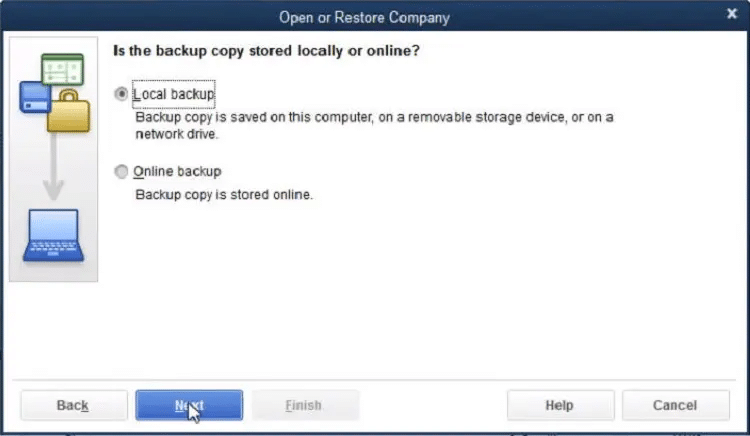
· Choose Create Local Backup and select Local Backup.
· Click the Options button to open the backup window, then click Browse.
· Select a location on your local hard drive to save the backup file.
· Finally, click OK and save the backup.
Conclusion
In this detailed guide, we demonstrated multiple ways to effectively resolve the QuickBooks Web Connector error QBWC1039.
With these methods, you should now be able to smoothly connect any web-based application to QuickBooks Desktop via the Web Connector.
If you still encounter issues or have questions, you can contact a QuickBooks expert for real-time assistance.
FAQs
1. Why do I run into the QBWC1039 error when connecting any web-based app to QB Desktop?
This error occurs due to permission issues, duplicate configuration files, outdated QuickBooks/Web Connector, or compatibility problems with the third-party app.
2. How should I fix the QuickBooks Web Connector error code QBWC1039?
Update QuickBooks and Web Connector, check permissions, remove duplicate QWC files, and ensure the company file and third-party app are properly configured.
3. Can security software installed on the computer hinder the seamless operation of QB Web Connector?
Yes, antivirus or firewall settings can block Web Connector from communicating with QuickBooks.
4. How do I connect my web connector to QuickBooks?
Install the Web Connector, add the QWC file for the app, authorize access in QuickBooks, and configure automatic login if needed.
5. Why is my QuickBooks WebConnector not working?
It may fail due to outdated software, permission issues, firewall/antivirus blocks, or corrupted QWC files.
6. What is QuickBooks web Connector used for?
It allows web-based applications to exchange data with QuickBooks Desktop automatically.
7. What is the QBWC1039 error in QuickBooks?
QBWC1039 is an error indicating issues like duplicate configuration files, missing permissions, or problems connecting a web-based app to QuickBooks Desktop.
8. Can QuickBooks Error QBWC1039 cause data loss or other issues?
No, it usually doesn’t cause data loss, but it can prevent web-based apps from syncing properly with QuickBooks.
9. What are some precautions that I can take regarding Web Connector Errors in QuickBooks?
Keep QuickBooks and Web Connector updated, ensure proper file permissions, avoid duplicate QWC files, and configure firewall/antivirus settings correctly.